Remote Assistance
This page will guide you through the remote assistance process so that we can help you with your TorrentRover problem.
What is Remote assistance? If you’re having a problem with TorrentRover and don’t know what else to do, we can connect to your computer remotely and fix the problem for you!
Here’s how it works… First you’ll need to download TeamViewer, a remote-assistance / remote-control tool. Next, you’ll set up TeamViewer for remote connections. Then, you submit your connection info in the form at the bottom of this page. We remotely connect to your computer and fix the problem for you! It’s quick and convenient, and you’ll be downloading torrent files again in no time. Just follow the instructions below.
1. Download the software
Use the following link if possible:
TeamViewer (official download)
If that link doesn’t work, use this one… TeamViewer (download from TorrentRover.com)
2. Install the software
Run the installer you just downloaded. Make sure you select Basic installation and Personal / Non-commercial use (see image below).
3. Open TeamViewer
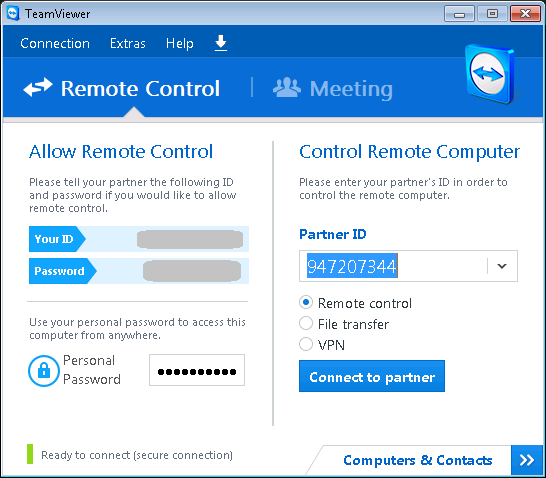
Start the program you just installed (if it didn’t start automatically). When it opens, you’ll see something like this…
4. Submit Your ID and Password
Now just submit your connection information in the form below…
Your TeamViewer password is used only to connect for this one session, and is not stored. If you’d rather not share it by form, email john@torrentrover.com instead.
Thanks — your request is with us.
We’ll get back to you at to arrange your remote assistance session.